


What Markdown Actually Is (And What It Isn't)
Markdown is a lightweight way to format plain text. Instead of clicking a Bold button, you wrap a word in double asterisks. Instead of selecting a heading style from a dropdown, you put a hash symbol at the start of a line.
That's genuinely the whole concept. It's not a programming language. It's not a software product. It's a small set of conventions, invented by John Gruber in 2004, that let you signal structure with characters you already know how to type.
Here's the part that matters for writers: when you write in Markdown, your words and your formatting live in the same file, as plain text. There is no proprietary format underneath. No hidden schema. No binary data that only one application can read. Your writing is portable, readable in any text editor, and will outlive whatever tool you used to write it.

The Syntax in Ten Minutes
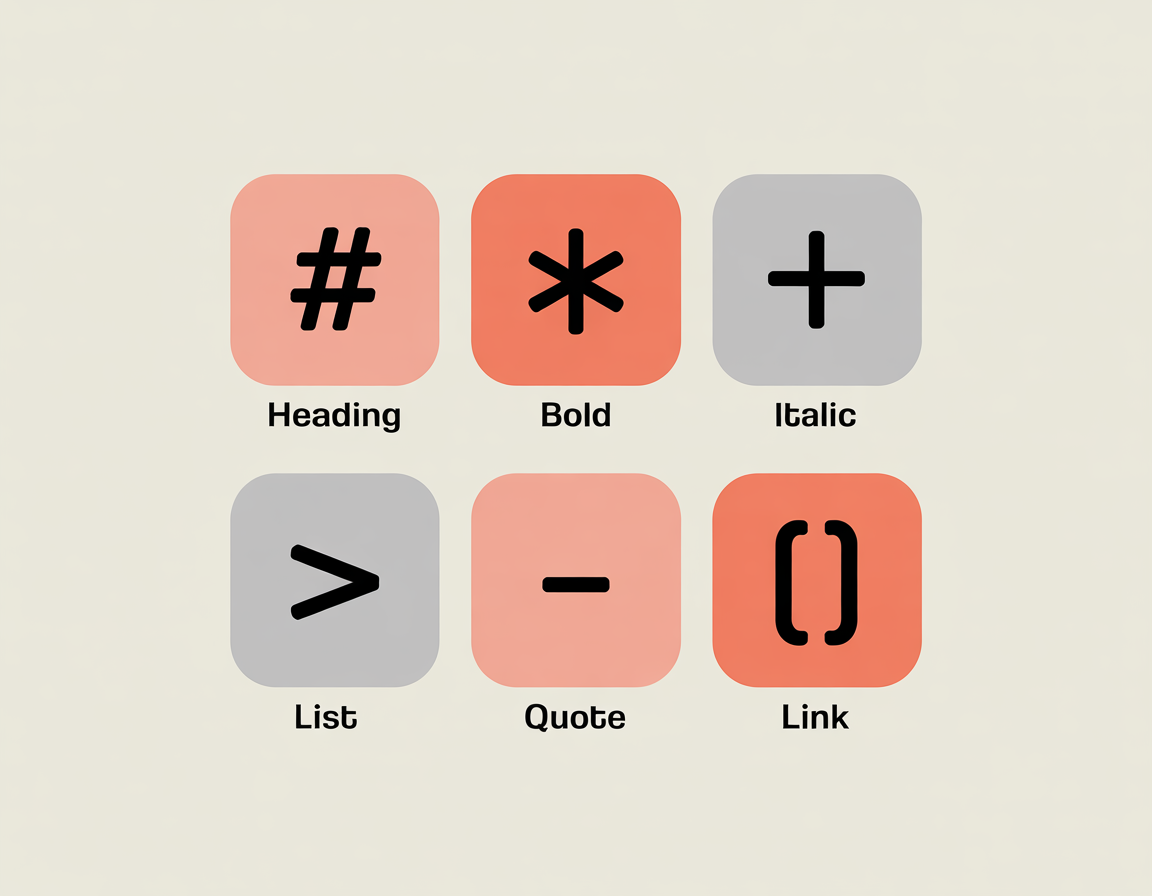
Markdown has about a dozen conventions. You won't use all of them in normal writing. Here are the ones that matter:
What you type | What it does |
# My Title | Big bold H1 heading |
## Section Name | Smaller H2 sub-heading |
**bold text** | Bold text |
*italic text* | Italic text |
- Item one | Bullet list item |
1. First step | Numbered list item |
[Link text](url) | Clickable hyperlink |
> This is a quote | Block quote |
That's most of what you need. Let's look at each one in a little more depth.
Headings
A single # followed by a space creates a top-level heading (the title of a document). ## creates a sub-heading. ### creates a smaller sub-section heading. You’ll rarely need more than three levels.
Bold and italic
Wrap a word or phrase in **bold text** for bold. Use *italic text* for italic. You can combine them with ***bold italic*** for bold italic.
Lists
Start a line with a dash (-) for a bullet list. Start with a number and a period (1.) for a numbered list. Markdown handles the numbering automatically, you can type 1. for every item and it will still render correctly.
Links
Links follow a pattern: [the text you want to display](the URL). So [AnySlate](https://anyslate.io) becomes a clickable link that says ‘AnySlate’.
Block quotes
Put > at the start of a line to create a pull quote or callout. Good for highlighting important points or quoting a source.
A Real Example: From Plain Text to Formatted Article
Here's what a short blog post intro looks like in Markdown:
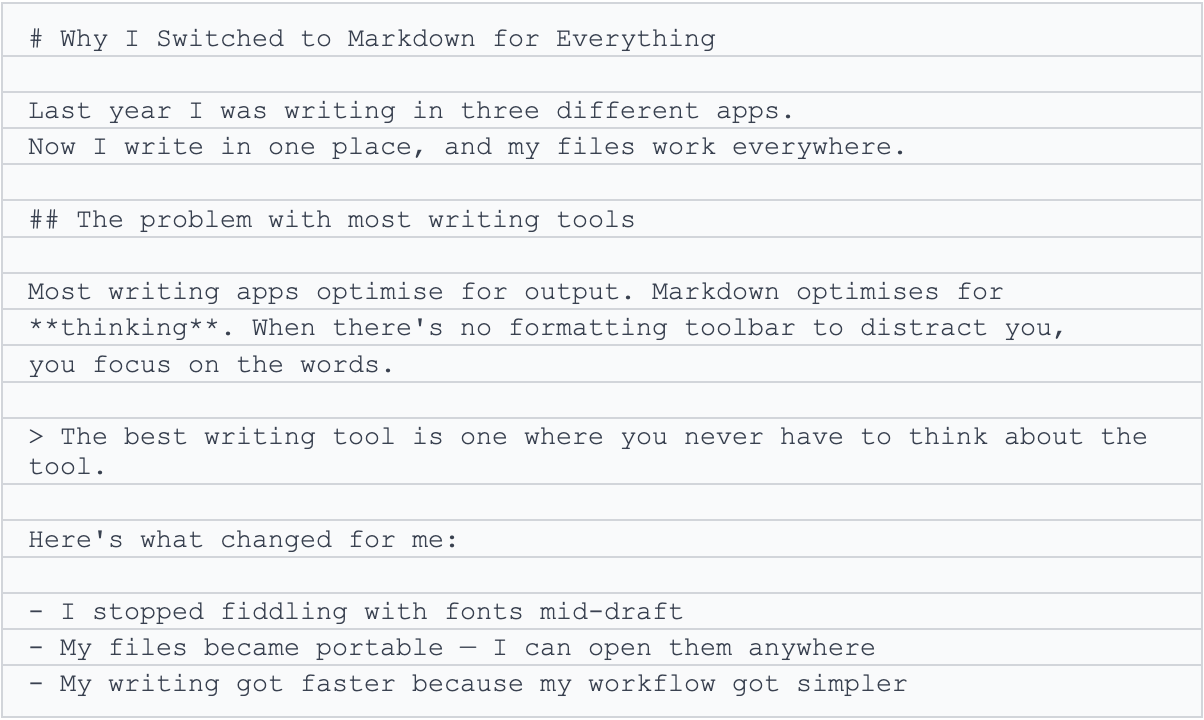
When you open that file in a Markdown editor, it renders instantly: the # becomes a large heading, the **thinking** becomes bold, and the > becomes a pull quote. But the raw file is still plain text. Both versions exist at once.
Choosing a Markdown Writing App

Any text editor can open a Markdown file, including Notepad. But a purpose-built Markdown writing app gives you live preview (you see the formatted output as you type), keyboard shortcuts, focus modes, and publishing tools.
What to look for when choosing one:
Live preview — see the formatted result alongside your raw text
Focus mode — a distraction-free writing environment that hides the interface
Cloud sync — so your files follow you across devices
Export options — PDF, HTML, or web publishing for when the writing is done
No proprietary format — your files should stay as real .md files, not locked inside the app
Common Markdown Mistakes (And How to Avoid Them)
Most Markdown errors come from a single cause: missing spaces. Here are the most common ones:
Missing the space after the hash
#Heading won’t render as a heading. # Heading will. The space after the # is required.
Forgetting to close the asterisks
**bold with no closing ** will not render correctly, and will turn the rest of your paragraph bold. Always close what you open.
Line breaks between paragraphs
In Markdown, a single line break doesn't create a new paragraph, it just continues the same one. You need a blank line between paragraphs. If your text is running together unexpectedly, add an empty line between blocks.
Using Markdown inside code blocks
Wrap text in backticks (`like this`) to show it as inline code. Markdown syntax inside backticks is not processed, useful when you’re writing about Markdown and need to show the raw characters.
The Writer's Markdown Workflow
Here's a simple workflow that works for blog posts, articles, essays, and long-form content:
Draft in a Markdown editor with live preview turned off, just write, no distractions
Turn on preview when you're in editing mode, check that your structure makes sense
Use focus mode or typewriter mode for deep work sessions
Export to PDF when you need to share with someone who doesn't use Markdown
Publish directly to the web for blog posts, using your editor's built-in publishing tool
The key shift is this: in Markdown, writing and formatting are two separate phases. During the first draft, you're not formatting at all, you're just adding lightweight signals (a hash here, two asterisks there) that the editor will interpret later. This single change removes the constant interruption of the formatting toolbar.
What Markdown Doesn't Do (And When That's Fine)
Markdown is not the right tool for every document. It's worth being honest about this.
If you need pixel-precise layout control, complex print documents, heavily branded materials, or documents with intricate tables, a word processor or desktop publishing tool will serve you better. Markdown is optimised for writing, not for design.
It also doesn't have native support for comments or tracked changes, unlike Microsoft Word, which matters in collaborative editing workflows where revision history is a hard requirement.
But for most of what writers write, articles, blog posts, newsletters, notes, essays, documentation, Markdown is not only sufficient. It's actively better. Fewer decisions mean more writing.
The One Thing to Take Away
Formatting anxiety is real, and it's not your fault. Writing tools have trained us to think about fonts and layouts before we've written a word. Markdown breaks that habit by making formatting lightweight and intentional, something you add on the way out, not something you wrestle with on the way in.
You don't need to learn all of Markdown to start. You need about five characters: #, **, *, -, and >. Start there. The rest follows naturally.
If you want to try it in a writing environment built around these ideas, cross-platform, cloud-synced, with a focus mode and one-click web publishing, AnySlate is free to start at anyslate.io. No account needed for the desktop app.