

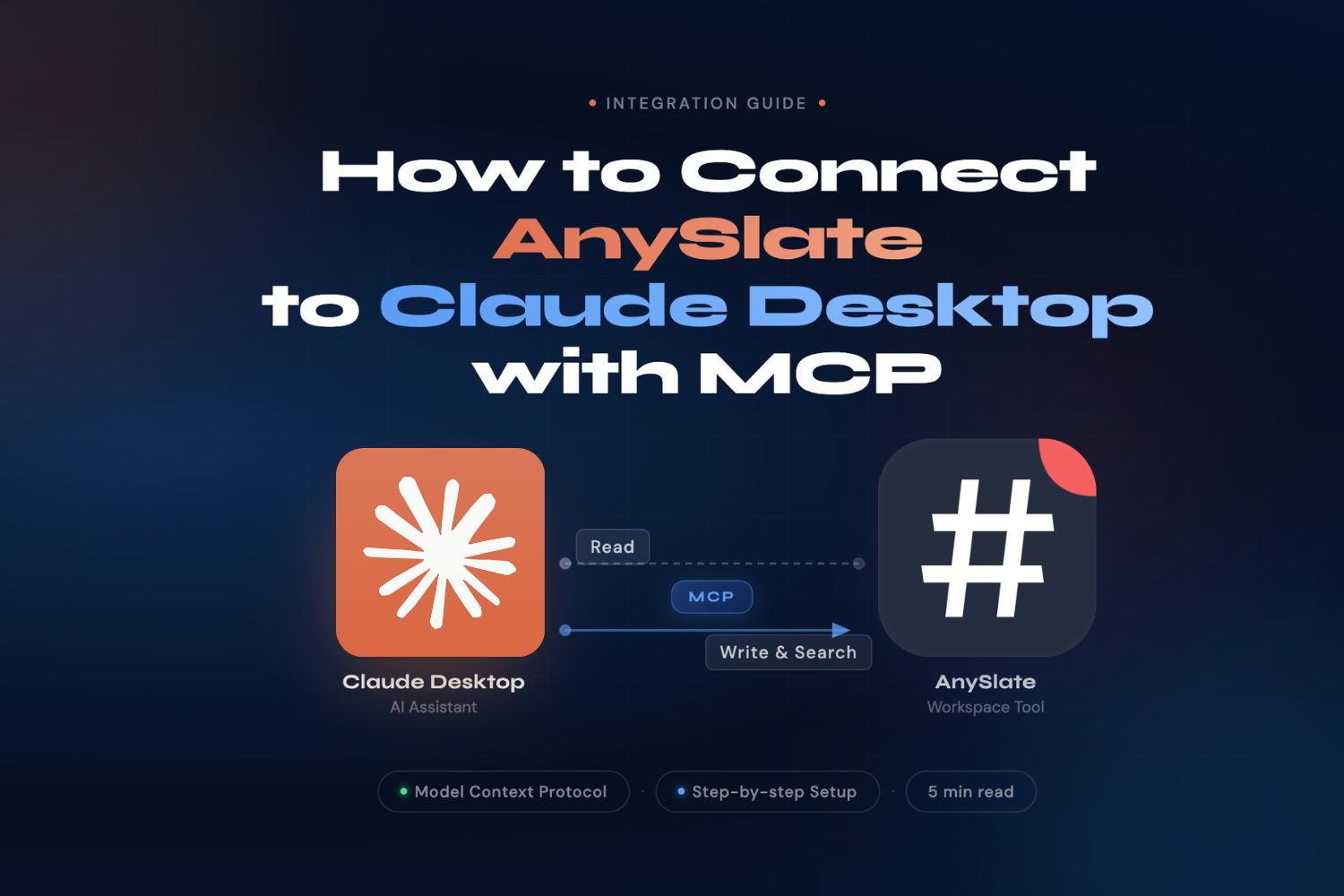
Why Claude Desktop + AnySlate Changes How You Write
Many keep Claude Desktop and their Markdown editor separate: drafting in one, copying to the other, and repeating the process. This constant switch disrupts your workflow.
AnySlate’s MCP support eliminates this hassle. With the connection set up, Claude Desktop can access, search, create, and edit AnySlate files directly, no copying, no switching, no interruptions.
Ask Claude to summarise all notes tagged #project-alpha. Claude will respond. Instruct it to create a new file called meeting-2026-03-15.md with today’s agenda, and it does. Your AI and writing workspace merge into a single environment.
MCP is an open standard from Anthropic for connecting AI models to tools and data. AnySlate supports MCP directly—no plugins or bridges needed.
What You Need Before You Start
An AnySlate Professional plan (the MCP feature is Professional-only)
Claude Desktop is installed on your machine.
Node.js 18 or later installed
5 minutes
Step 1 — Create Your MCP API Token in AnySlate
Every connection between Claude Desktop and AnySlate uses a personal API token. To create one, open the AnySlate desktop app and go to Account Settings.
Select API Tokens in the sidebar.
Click + New Token and give it a descriptive name (e.g., 'Claude Desktop').
Select the scopes you need: read (required), write (optional), and/or search (optional).
Set an expiration date (recommended), then click Create Token.
Copy your token immediately; it starts with as_mcp_ and is shown only once.
Tokens start with as_mcp_. Make sure to copy yours now—AnySlate only shows it once. If you lose it, revoke and generate a new one.
Step 2 — Find and Edit Your Claude Desktop Config File
Open Claude Desktop → Settings → Developer → Edit Config to open the config file. Or, open it manually at the path below.
macOS
~/Library/Application Support/Claude/claude_desktop_config.json
Windows
%APPDATA%\Claude\claude_desktop_config.json
Step 3 — Add the AnySlate MCP Server Config
Paste the following JSON into your config file. If the file already contains other MCP servers, add the anyslate block inside the existing mcpServers object.
{
"mcpServers": {
"anyslate": {
"command": "npx",
"args": ["-y", "@anyslate/mcp"],
"env": {
"ANYSLATE_TOKEN": "as_mcp_your_token_here"
}
}
}
}
Replace as_mcp_your_token_here with the token you created in Step 1.
Validate your JSON before saving. Missing or trailing commas are common errors. Use jsonlint.com or your editor's linter to check syntax.
Step 4 — Restart Claude Desktop
Simply reloading the window is not enough. Fully quit and relaunch Claude Desktop. When it starts, AnySlate MCP tools appear automatically in Claude’s tool list.
To test the connection, ask Claude to list all your AnySlate files. You should see your workspace files in the response.
What Claude Can Now Do Inside Your AnySlate Workspace
list_resources —> list all Markdown files in your workspace with pagination
search_resources —> search files by name with fuzzy matching
read_resource —> read the full content of any file, including parsed sections
get_resource_versions —> view the version history of any file
create_resource —> create new Markdown documents in your workspace
update_resource —> replace the entire content of an existing file
update_resource_section —> edit a specific named section without rewriting the whole file
delete_resource —> soft-delete files (recoverable)
Troubleshooting
'Server disconnected' or 'TransformStream is not defined'
This means npx is running on Node.js 16 or older. The @anyslate/mcp package requires Node.js 18+.
Run node --version in your terminal. You need Node.js 18 or later.
If you're using nvm (a tool for managing Node.js versions), some graphical apps may not see the Node version you set in your terminal.
Fix: use the full path to npx, symlink node to /usr/local/bin, or install Node via Homebrew (brew install node).
After fixing, clear the npx cache: rm -rf ~/.npm/_npx
Authentication errors
Check that your token is correct and hasn't expired.
Confirm your account is on the Professional plan.
Tools not appearing after restart.
Make sure you fully quit and relaunch Claude Desktop, not just reload the window.
Check your config file for JSON syntax errors.
What's Next
Once connected, you're only scratching the surface. Try asking Claude to write a weekly summary based on all your notes, or to create a structured folder of files from a brainstorm you paste into the chat. The AnySlate + Claude Desktop combination is genuinely different from anything else in the Markdown editor space.
Explore the full MCP documentation at anyslate.io/docs/mcp, or check out the Professional plan at anyslate.io/pricing.