

Before You Start
Three things need to be in place before you configure anything:
Node.js 18 or later, run node --version in your terminal to check. The AnySlate MCP package will not work on older versions.
An AnySlate account, any plan, works to generate a token and connect. MCP is available across plans.
Cursor installed, any recent version. The MCP config panel is at Settings → Tools & MCP.
Step 1: Generate Your API Token
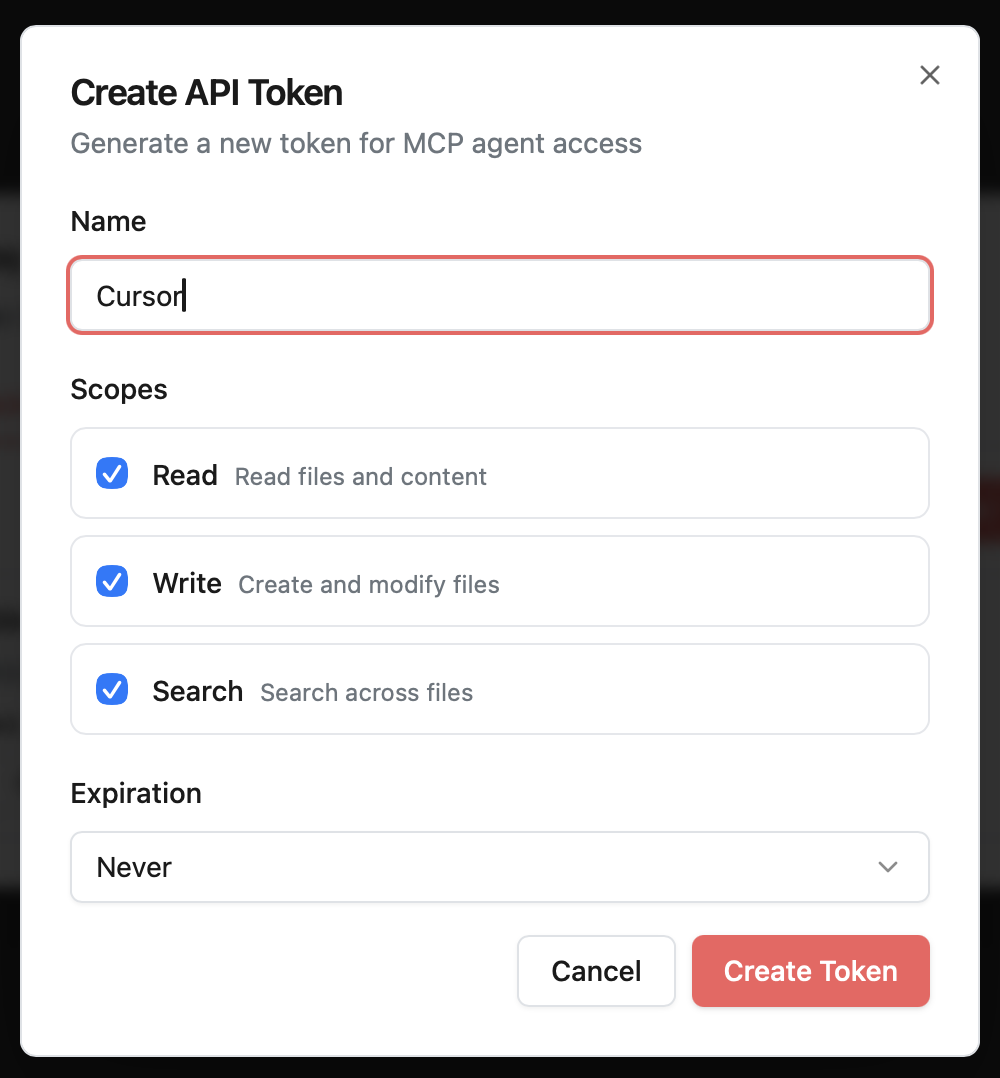
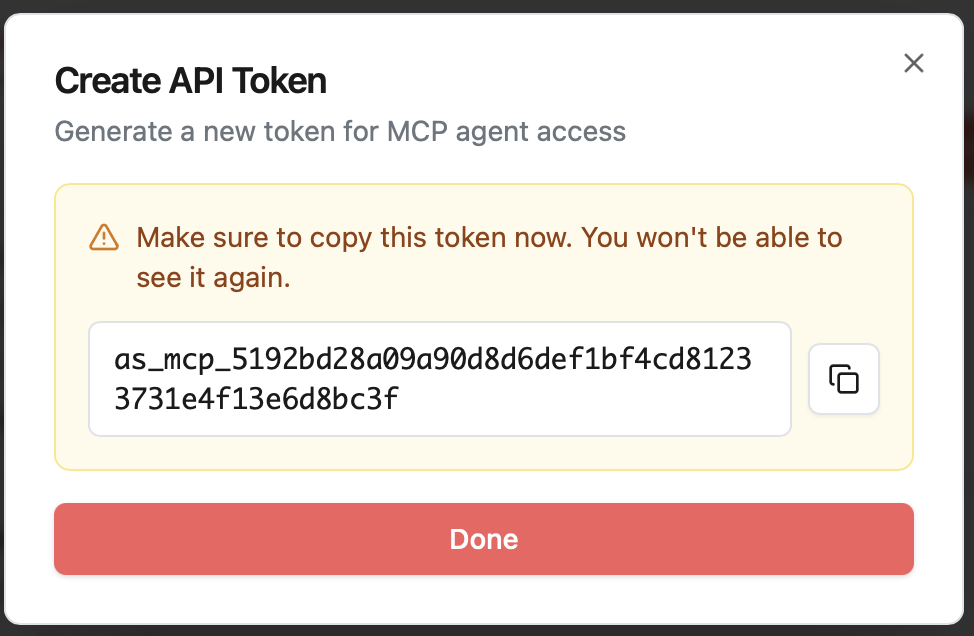
Log in to AnySlate and go to the API Tokens page at anyslate.io/docs/mcp/tokens. Create a new token named Cursor or Local Dev, then copy it. You will only see it once.
Your token starts with as_mcp_, keep it somewhere safe before moving to the next step.
Step 2: Add AnySlate to Your Cursor MCP Config
The cursor reads MCP servers from a JSON configuration file. Open or create the file at the path for your OS:
OS | Config file path |
macOS / Linux | ~/.cursor/mcp.json |
Windows | %USERPROFILE%\.cursor\mcp.json |
Add the following block. If the file already contains other servers, add the anyslate entry to the existing mcpServers object; do not replace the entire file.
{
"mcpServers": {
"anyslate": {
"command": "npx",
"args": ["-y", "@anyslate/mcp"],
"env": {
"ANYSLATE_TOKEN": "as_mcp_your_token_here"
}
}
}
}
Replace as_mcp_your_token_here with the token from Step 1.
Step 3: Restart Cursor and Verify
Save the file, then fully quit and relaunch Cursor; a window reload is not enough. Once it is open, go to Settings → Tools & MCP. You should see any slate listed with a green status indicator and its available tools.
If it does not appear, two quick checks: validate the JSON at jsonlint.com (a missing comma will cause Cursor to silently ignore the file), and confirm you saved before relaunching.
What Cursor Can Do with AnySlate Connected
Once the connection is live, your agent can read and write AnySlate documents in any prompt. A few examples of what that looks like in practice:
Prompt in Cursor | What happens |
"Summarise the open tasks in my project spec" | Agent reads the AnySlate doc and returns a summary |
"Create a new doc called API changelog with today's changes" | Agent creates a new file in your AnySlate workspace |
"Read the requirements doc and write tests for auth" | Agent reads from AnySlate and generates code in Cursor |
"Update the architecture notes with what I just built" | Agent writes back to an existing AnySlate document |
The documents your agent reads are your actual AnySlate files — plain Markdown, always current. There is no syncing step. Your agent is treating your docs the same way it treats your codebase.
If Something Goes Wrong
Most issues come down to one of these four things:
Problem | Fix |
Server disconnected / tools not loading | Node.js is probably too old or unreachable by Cursor. Install Node via Homebrew (brew install node) so GUI apps can find it, or point the config directly to your npx binary. |
Authentication errors | Check the token in your config matches what is in your AnySlate account. Tokens are case-sensitive. Regenerate if needed. |
Tools still missing after restart | Clear the npx cache: rm -rf ~/.npm/_npx — then restart Cursor. |
Cursor ignores the config entirely | The JSON is invalid. Run: cat ~/.cursor/mcp.json | python3 -m json.tool to check. Fix any errors and restart. |
The One Thing to Take Away
Every time you leave your editor to copy context into a chat, you break focus. Over a long session that adds up fast.
Connecting the Cursor to AnySlate removes that cost. Your documents become part of the same context as your code, always readable, always writable, always in plain text you own.
The setup takes five minutes. If you want to try it, start at anyslate.io. The Professional plan, which includes MCP, real-time collaboration, and the AI writing assistant, is $60 a year.